 Grablet
Ready to save
Grablet is installed.
Make your first save. Try the sample image below, then open a site you use.
Available on desktop Chrome, Edge and Firefox, and Firefox for Android. On Android, open Grablet from Firefox’s Extensions menu.
1 / Try a media save
Save this sample image.
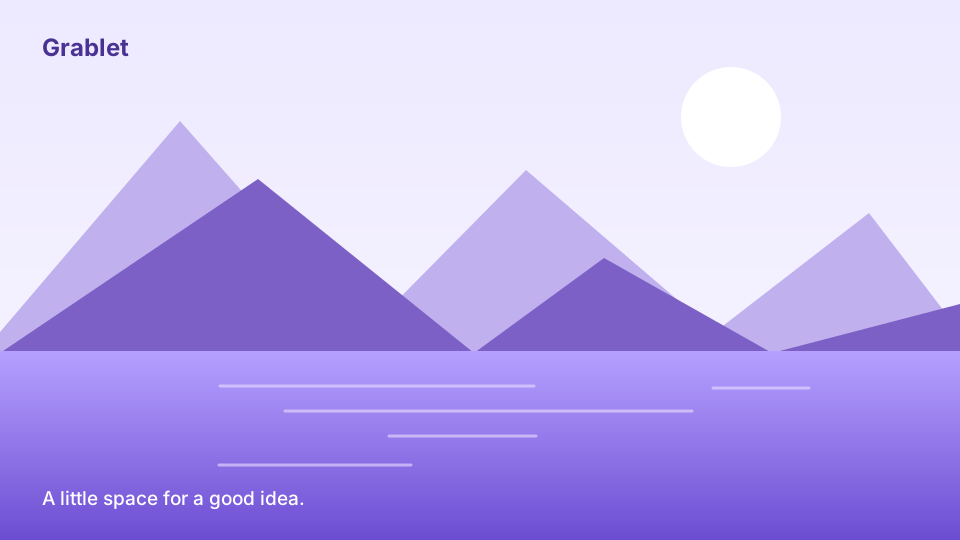
Right-click the picture and choose Save with Grablet. Then open your browser’s Downloads to check the completed file.
On Firefox for Android, open the sample image, then open Extensions → Grablet. Enable Grablet for this site if prompted, reopen the image and choose Save in Grablet.
This illustration is yours to save and reuse. If the Grablet command is missing, check that the extension is enabled in this browser. You can also open the sample image and try there.
Explore highlights and your Library next
2 / Keep a passage
Save an idea with its source.
Keep the useful idea, together with where you found it.
Select the sentence above, then open Grablet and choose Save highlight. On desktop, you can also right-click the selection and choose Save highlight. On Firefox for Android, open Grablet through Firefox’s Extensions menu while the text is selected.
Grablet keeps the exact words and this page’s address on your device. Notes can come later.
Highlights requires the updated extension. If the command is missing, check for an extension update. A browser-owned or restricted page may not allow capture.
3 / Find it again
To keep a page, choose Bookmark → Standard from the right-click menu, or Bookmark beside an item in Grablet. Review its title, thumbnail and description, then save. Use Private bookmark · Pro when you want these details encrypted behind your vault password.
Already have a collection? In Library, choose Import browser bookmarks and select an HTML export from Chrome, Edge or Firefox. Review the import preview before saving; duplicate and unsupported links are skipped.
Open Grablet from your toolbar and choose Library. Use Media or Highlights to narrow your view, or search for a word you saved. A text highlight offers Open source and Copy with source.
Your text highlights stay private on this device and are excluded from cloud sync in this release. Basic highlighting, notes, search and export are free.
Pin it on desktop
Click the puzzle-piece button at the right of your toolbar. Click the pin beside Grablet. The icon stays where you can see it.
Ready for your own content?
Open a post, play the video, and a Save button appears on it. Or click the Grablet icon to see everything on the page.
About the permission you just granted
Your browser asked for access to websites. That is how Grablet sees media on the page you are on. Nothing it sees is ever sent to us; the few requests Grablet makes on its own are listed in the privacy policy. At install, Grablet only has access to the sites it supports by name. Any other site is off until you switch it on from the popup. The full list, with reasons.